

Iphone speaker not working on calls is one of the most common complaints I hear from friends and family, and I’ve walked more than one of them through a dead earpiece over a panicked phone call.
The pattern is almost always the same the phone works fine for everything except talking to another human. Before you assume the worst, work through these checks in order. Most people fix call speaker on iphone not working issues in under ten minutes without opening the phone at all.
Why Iphone Speaker Not Working on Calls
Your iPhone actually relies on multiple speakers working together, and understanding this setup solves most confusion fast. The Earpiece Speaker, sometimes called the receiver, sits near the top of phone and you hold to ear during phone calls, handling voicemails and audio messages at close range through a tiny speaker slot with grilles built for a low-volume component.
The Bottom Speakers near the charging port push out music, videos, ringtones, and media audio, and on newer models like the iPhone 7 onward these combine with the earpiece for full stereo sound through Stereo Speakers.
When your bottom speakers play sound just fine but call audio goes silent, the real diagnostic question becomes whether the fault sits in routing, a settings problem, or a software glitch, since each speaker has its own failure modes.
Sometimes the earpiece stays quiet while speakerphone works, and other times a specific app misbehaves without pointing to a wider system-wide audio fault, so testing each speaker separately tells you exactly where the trouble lives. This is exactly the kind of confusion behind most reports of iphone 12 ear speaker not working on calls, since the two speaker systems get blamed for each other’s faults.
Check Settings (Volume / Silent Mode / Bluetooth)
Before anything else, open your Settings app and check the basics that trip up almost everyone. Flip the silent switch, which controls Silent Mode, so no orange color shows, then use the side volume buttons or plain volume buttons to raise the volume level, keeping in mind that media volume and call volume work differently, so bump the in-call volume only during an active call.
Next, swipe down from the top right to open Control Center and look for the moon icon, which tells you Do Not Disturb or a Focus mode from your Focus modes list is blocking incoming call audio, and while you’re there confirm your Bluetooth Connection isn’t quietly sending sound to Bluetooth headphones or a wireless speaker.
Restart Your iPhone
A simple restart fixes more call problems than people expect, especially when the software gets stuck. Press and hold the Power Button, or pair it with the Volume button on latest models, until the Power Off slider appears, then turn off your iPhone completely and wait a moment before you turn on the device again.
This full power off clears temporary audio routing states hiding behind minor issues that a quick reboot can’t reach any other way.
Clean the Speaker Grills
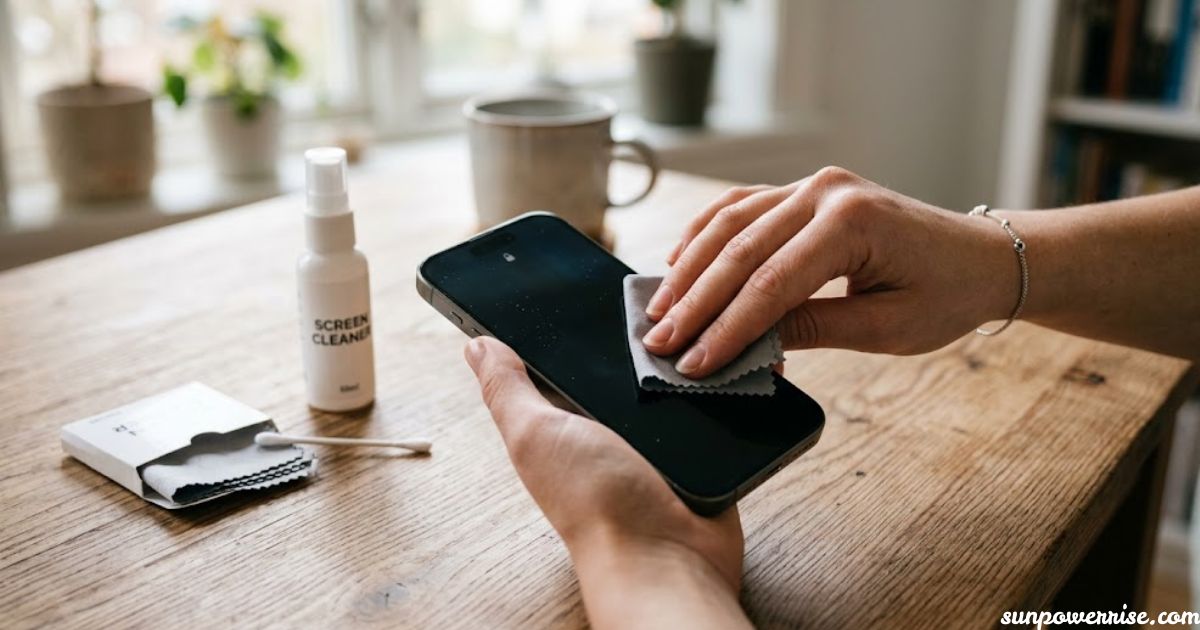
Over time, skin oils, dust, and pocket lint settle into the fine mesh opening of your earpiece grille, and this mesh slowly ends up blocking the sound transmission until calls sound muffled.
In humid regions like San Antonio, where humidity sits around 67 percent and summer heat passes 95°F, extra moisture makes these debris particles cling harder than they would in drier climates.
Skip liquid, sharp objects, and metallic objects near the speaker grilles or speaker openings altogether, and if a test call still sounds muffled even with volume raised, a shop offering professional cleaning, such as RMPT iPhone repair, can finish the job safely.
Reset All Settings
When nothing else works, a full Reset All Settings clears out conflicts and incorrect settings that build up over time without touching a single photo or file.
Go to Settings, then General, then Transfer or Reset iPhone, choose the reset option, and confirm it, and your network settings, accessibility settings, audio routing settings, and other system settings all return to their defaults while your personal data stays untouched.
Most Common Causes
Ranked in order of likelihood, the common causes behind a dead earpiece usually start small and grow more serious from there.
A stray Bluetooth device or leftover headphone mode causes most cases, followed by simple debris trapped in the earpiece mesh. Further down the list sit a broken iOS update, a recent screen replacement gone wrong, and finally an actual hardware fault inside the phone itself.
Notably, iphone 13 ear speaker not working on calls cases we’ve reviewed tend to follow this exact same order, with settings and debris causing far more trouble than actual hardware failure.
Common iPhone Speaker Problems and Their Causes
After handling thousands of repairs at Quick Fix Mobile, a clear pattern emerges among the complaints people bring in. No Sound During Calls usually points to the earpiece speaker, or receiver, while No Speakerphone Function points instead to the bottom speakers, and Muffled Sound often traces back to water damage.
Intermittent Sound can mean a loose connection, and Speaker Working in Some Apps But Not Others almost always signals a software issue or a settings issue rather than broken hardware, which lines up with Apple Support statistics showing that 22% of iPhones face some speaker trouble across a typical device lifetime.
Specific Fixes for Calling Problems
When your Iphone speaker not working on calls, the solution may be as simple as changing the volume settings. Check the Silent Mode switch and the side volume buttons on the side of the phone, and confirm no orange color shows through, since that alone can disable sound during a call.
To narrow things down, compare regular calls against speakerphone, then place a FaceTime audio call to see if that channel behaves differently. Try headphones as well, and wipe the microphone area to clean microphone dust, since a dirty mic gets blamed for a broken calling speaker more often than people expect.
FAQs
How to fix iPhone calling speaker?
Start simple, raise the in-call volume, turn off Silent Mode, and restart your iPhone. If that doesn’t help, clean the earpiece mesh or try Reset All Settings.
Why can’t I hear anyone on my iPhone when they call?
This usually points to the receiver, or Earpiece Speaker, being blocked by debris or misrouted by a ghost Bluetooth connection. It’s frustrating, but it’s rarely as serious as it feels.
Why can’t the other person hear me on my iPhone?
This one’s different. It points to the microphone area, not the speaker, so a bit of debris near the mic is the likely culprit. Wiping it clean with a soft clean cloth often solves it right away.