

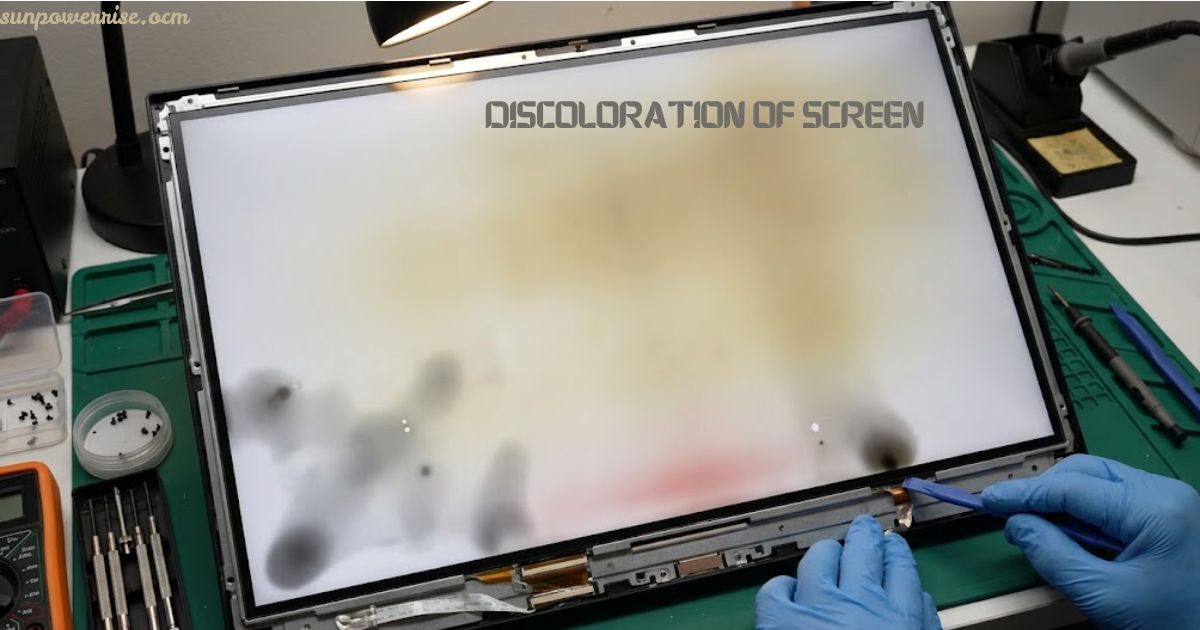
I have fixed many displays over the years, and discoloration of screen is still the problem people ask about most. It can show up as yellowing, brownish tints, reddish tints, dark spots, white spots, or shadows that spoil your browsing and gaming. Most cases start with degrading liquid crystals, backlight wear, overheating, or physical pressure.
When a friend calls about a monitor shadow problem, I first ask whether it comes from software issues or hardware aging. The good news is that you can often diagnose and fix it in minutes at no cost with a simple reset.
A professional repair or panel replacement is only needed after permanent damage. Mixing up a permanent material change, a temperature effect, and normal variation leads to unnecessary rejections and colour complaints.
What Does Discoloration of Screen Look Like?
Every screen turns an input signal into light, and the pattern of the fault tells you the cause. A uniform tint points to the light source or polariser, an edge gradient points to bonding or poor backlight uniformity, and a localised patch points to mura or contamination.
You may also see yellow spots, uneven color tinting, a pink hue, or a blue hue, mostly on older LCD panels. Rainbow patches that shimmer like oil on water are classic pressure damage, while dark patches near the edges and corners come from failing backlights. Backlight bleeding sends halos across dim rooms, dead pixels appear as tiny dots, and burn-in leaves ghost images on OLED displays.
What Causes Discoloration of Screen?
I split the causes into hardware-related causes and software-related causes. On the hardware side, pressure damage is the one I see most. It happens during shipping, mounting, or heavy cleaning, and over-tightening screws leaves rainbow swirls. Light pressure marks often fade in one or two days, but heavy ones stay permanent.
Heat exposure above 60°C harms polarizers, adhesives, and liquid crystals, and sunlight adds UV damage on outdoor screens. Polarizer aging gives an amber tint, and this chemical change does not reverse.
LCD panel degradation is slow, since the lifespan runs about 30,000-60,000 hours. Backlight failure and LED aging cause color temperature shifts, and mixed bins from poor LED binning show a tint that changes from unit to unit. Mura looks like cloudy patches and comes from cell gap problems during production.
Loose cables and manufacturing defects usually appear in the first 30-90 days. Software causes cost less to fix, because color profile problems, outdated graphics drivers, Windows Night Light, f.lux, and operating system glitches can tint the whole screen. Magnetic interference only affects old CRT monitors. Knowing the real cause of discoloration of screen saves you money.
How to Diagnose and Fix Screen Discoloration
Start with the root cause. Ask whether the sudden appearance followed an impact or came gradually over weeks. A known-good monitor or external display shows quickly whether the trouble sits in software or hardware. If the fault appears after extended use, suspect a heat-related problem, and after a system update, suspect a driver conflict and roll back updates.
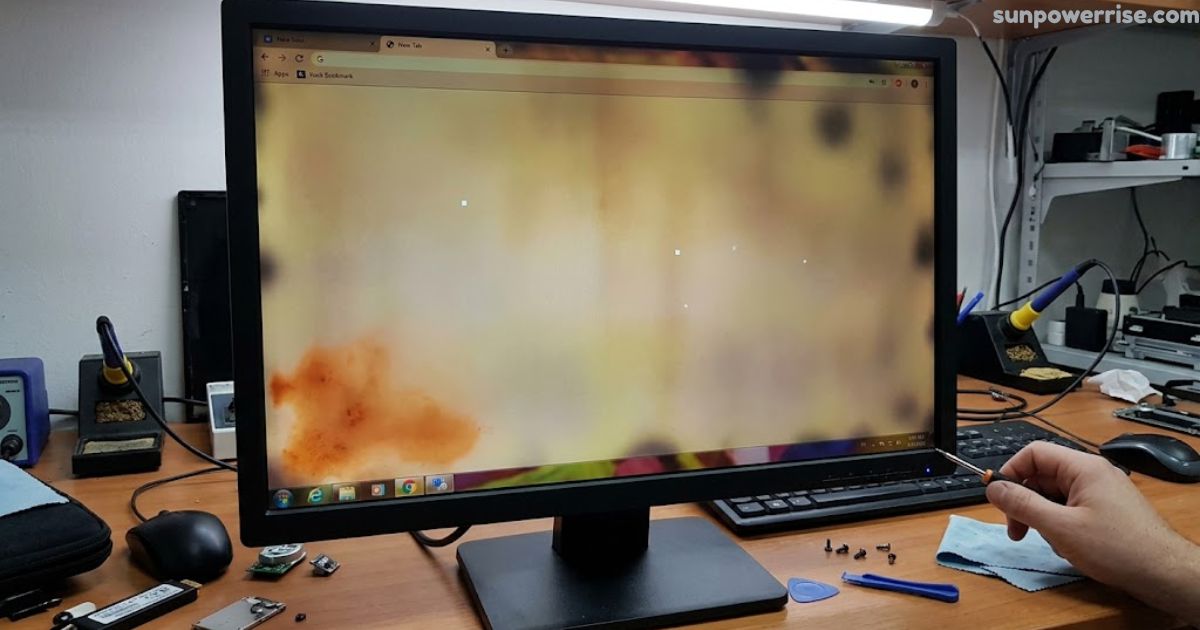
Try the easy DIY fixes first. Reset color settings in Windows Settings or choose Restore defaults on a Mac, disable blue light filters like f.lux, and update graphics drivers through Device Manager or Software Update. Then calibrate display colours with the built-in calibration tool and lower brightness to hide backlight bleeding. Next, check cables, try a different port, and clean the screen with a microfiber cloth and a screen-safe cleaner, avoiding harsh chemicals.
For temporary pressure marks, leave the laptop flat for 24-48 hours and gently massage the spot for 30 seconds. Run a solid colors test, boot into safe mode, or open the BIOS to see whether the fault stays. If it stays, heat damage, polarizer failure, or bad mura usually lead to panel replacement.
For advanced troubleshooting, roll back graphics drivers, reset display settings, or create a new user account to spot a profile-specific software problem. Fixing discoloration of screen at home works best when you follow this order.
How to Prevent Screen Discoloration
Prevention beats repair, especially for industrial products. Leave clearance of 0.3–0.5mm to absorb thermal expansion and vibration, use gaskets, and avoid over-torquing mounts. Good thermal management with gap pads, ventilation, and brightness derating helps in hot enclosures, and UV-resistant polarizers suit outdoor use.
Choose industrial-grade panels with wider temperature ratings and derated backlights at 70-80% capacity for longer life. Strong supply-chain controls keep the LED bin, polariser grade, and adhesive grades fixed, so ask suppliers for change notification, because changes leave no electrical signature. This is the best way to stop discoloration of screen before it starts.
Discoloration vs. Other Common Screen Issues
A quick comparison keeps the labels straight. A dead pixel is a single dot, screen burn and ghosting come from pixel aging on OLED and plasma, and a mura defect gives cloudy regions from cell gap variation. Pressure marks form rainbow spots that sometimes fade, while true panel discoloration forms patches and tints with soft edges. A perfectly round mark suggests a backlight issue or contamination.
Viewing Angle and Temperature Effects That Are Not Defects
TN panels shift fastest, IPS holds colour off axis, and VA sits between them, so a customer at 45 degrees sees a panel characteristic, not a fault. Temperature effects reverse as the panel warms or cools and stabilises. Test at a fixed angle across a temperature range, and if the change is reversible, it is no defect.
How Discoloration Is Measured
A spectroradiometer or colorimeter reports chromaticity coordinates and luminance, and the colour difference is usually Delta E. Measurement geometry, including distance, warm-up time, and displayed level, matters as much as the instrument. Numbers judge discoloration of screen fairly.
Specifying Colour Tolerance: Zone, Angle, Temperature and Age
A good specification names the white point, tolerance, centre, edges, corners, temperature range, and ageing allowance at end of life. Use a looser tolerance with a strict luminance-uniformity requirement for status information, and tighten limits for colour-critical content. Measure at the brightness setting in service to avoid disputes.
Defect or Normal Variation?
A patch that grows during thermal cycling is a defect. A tint inside tolerance is normal variation that needs a binning decision. An inspector can then classify units consistently as rejected, sorted, or accepted, using a written acceptance standard.
Incoming Inspection and the Evidence to Request
At incoming inspection, the receiving check compares a uniform white field with a boundary sample and records chromaticity coordinates. For a batch deviation, supplier analysis names the changed LED bin, polariser lot, adhesive batch, or bonding parameters. Each record reveals a trend and process drift before batch failure.
FAQs
Can you fix screen discoloration?
Yes, often you can. Software issues like color profile problems or outdated graphics drivers usually clear up with a simple reset or calibration, but permanent damage from heat exposure or severe pressure may need panel replacement.
What is discoloration of the screen?
It is a shift in how your display shows color, such as yellowing, dark spots, uneven color tinting, or shadows. It usually comes from degrading liquid crystals, backlight aging, heat damage, or physical pressure.
What does LCD damage look like?
It often shows up as rainbow patches, dark patches, yellow spots, or blotches near the edges and corners. Pressure damage looks like shimmering swirls, while dead pixels appear as tiny fixed dots.
What causes purple blotches on my phone screen?
Purple blotches usually point to pressure damage, liquid crystals squeezed out of alignment, or a failing backlight. Heat exposure and moisture inside the panel stack can also cause them, and sadly they rarely fade on their own.
How do I get my screen color back to normal?
Start by choosing Restore defaults or reset color settings, then disable blue light filters and update graphics drivers. If the tint stays, calibrate display colors or try an external display to check for a hardware fault.