


Quick links save time, and once you get the hang of them in a few different tools, you start using them everywhere. Below, I’ve broken things down by feature so you can jump to exactly what you need.
Creating and Opening a Quicklink
You press your Raycast Hotkey, and in my case that means Command Space, then you search for the Create Quicklink command inside Raycast.
I name mine Open Twitter, add the link twitter.com, and notice the Open With field automatically picks my default browser, which happens to be Arc instead of Chrome; the Organization’s dropdown at the top even lets you share this with your team before you create it.
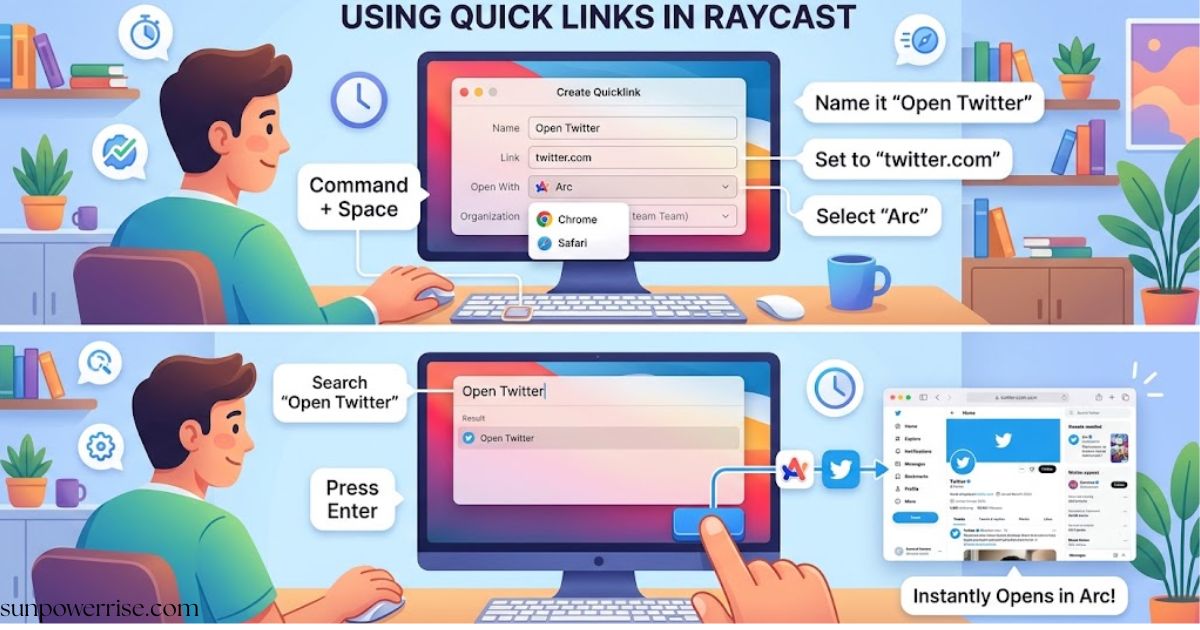
Once it’s ready, you can type Open Twitter into the root search and press enter, and it opens Twitter right away this is quick links in their simplest form.
Using Arguments in Quicklinks
To add more power, create a new link called Search Twitter and paste in Twitter’s search url, which looks like twitter.com/search with a query string of Q. Wrap the word you want inside curly braces to turn it into an argument you can name it Q for short and remember the maximum allowed is three per link, then press create.
Back in the root search, type Search Twitter and you’ll see an input box with the query filled in; press tab to focus into it, type your search query, and press enter to see the results.
Opening a Quicklink in a Specific App
You can also send a link straight into a chosen app instead of your browser, and this is the technique I use most for the Raycast’s Twitter link. Paste in the URL for the twitter profile, which is twitter.com/raycastapp, then set Open With to the Twitter App rather than a browser. Search for it and press enter, and it opens directly inside the app the same idea works for Finder paths too.
Opening Finder Paths with Quicklinks
Create a link named Open Downloads and paste the path to your downloads folder into the link field. Finder gets picked automatically in the Open With box the moment it recognizes a folder path instead of a web address. Since I visit this folder many times a day, I just type it into the root search and press enter to jump straight there.
Assigning a Hotkey to a Quicklink
Because I open my downloads folder so often, I give it its own shortcut using Command K to open Configure Quicklink. Inside the Hotkey field, I set option D as my personal Hotkey. Now I can pull up that folder from anywhere on my Mac in a single keystroke.
Launching Extension Commands via Quicklinks
Raycast also lets you trigger commands from other extensions, so install the Twitter Raycast extension from the store and open its Send Tweet command, which shows a blank text area for your tweet.
To automate this, press Command-K on the command, copy the deeplink, paste it into Floating Notes, and build a JSON object holding a default value in my case a fire emoji followed by the words Raycast Hot Tip, since I post Raycast Hot Tips often.
Cut that JSON to your clipboard, run URL encode to get the encoded version, paste it into a new link named Tweet Raycast Hot Tip, watch Open With switch to Raycast, and when you run it the tweet box comes already filled in a small trick that smooths my whole workflow.
Entering Edit Mode
On the main page of my SharePoint site, I start by click edit in the top right corner. This switches the view page into edit mode right away. You can tell it worked because the layout suddenly looks editable.
Adding a Quick Links Web Part
Next, scroll down to the spot where you want the links to sit. Click the plus sign to add a new section or a web part. Among the choices, you’ll spot the quick link option waiting to be added.
Adding and Customizing Links
Click add links, and you can pull from what’s recently used, a shared library, OneDrive, stock images, an uploaded document, or an external site; pick your file and hit insert.
Once it’s placed, open its settings to see the location, choose whether it opens in a new tab, edit the title, and adjust the thumbnail, which is auto selected by default but can also be a custom image you upload. For accessibility, add alternative text or mark the image as decorative, and you can always change link details later if the file moves.
Choosing a Layout
The layout of your links can shift depending on your style. Choose from compact, strips, grid, button, list, or tiles, and each one changes how the links appear on the page. This flexibility lets you build several quicklink groups, each suited to a different set of files or tasks.
Creating a Quick Link with the @ Symbol
On any Notion page, type the at symbol and a small menu with suggestions pops up right where you’re typing. Start typing a name, and Notion will filter the list in real time; use your arrow keys or mouse to select page, whether it’s a project hub, a database, or a related document.
Press enter, and a clickable link to the linked page drops into your text, keeping context in place while letting readers open it in a new tab or the same window.
Creating a Quick Link with Double Brackets
You can get the same result by typing two brackets, also known as double square brackets. Start typing the page name you want, and the same search appears with matching results across your workspace. Pick your target page, and this method feels natural for building a web of related notes or cross-referencing ideas.
Linking to External Resources
Both methods work for more than internal pages; you can also link to a website or a document hosted elsewhere. This makes each resource part of your Notion setup without leaving the app. It’s a simple way to keep external resources feeling centralized alongside your own notes.
Tips for Effective Quick Links
Here are a few practical tips: place links right after a key term or at the end of sentence where readers need extra context. Keep your page titles consistent so the right option shows up fast, and if the list feels long, type more letters to narrow down the results. If anything changes, you can update link details or remove the link entirely, simply by editing text the normal way.
FAQs
What are quick links used for?
Quick links let you instantly access files, pages, apps, or websites without searching for them manually.
Can I add arguments to a Quicklink in Raycast?
Yes, you can use curly braces to add up to three arguments per link for more dynamic searches.
How do I add quick links in SharePoint?
Switch to edit mode, add a Quick Links web part, then insert files, images, or external links.
What’s the difference between the @ symbol and double brackets in Notion?
Both create clickable links to pages, but double brackets are often preferred for cross-referencing notes.
Can quick links point to external websites?
Yes, in Notion, Raycast, and SharePoint, quick links can connect to external resources, not just internal pages.