

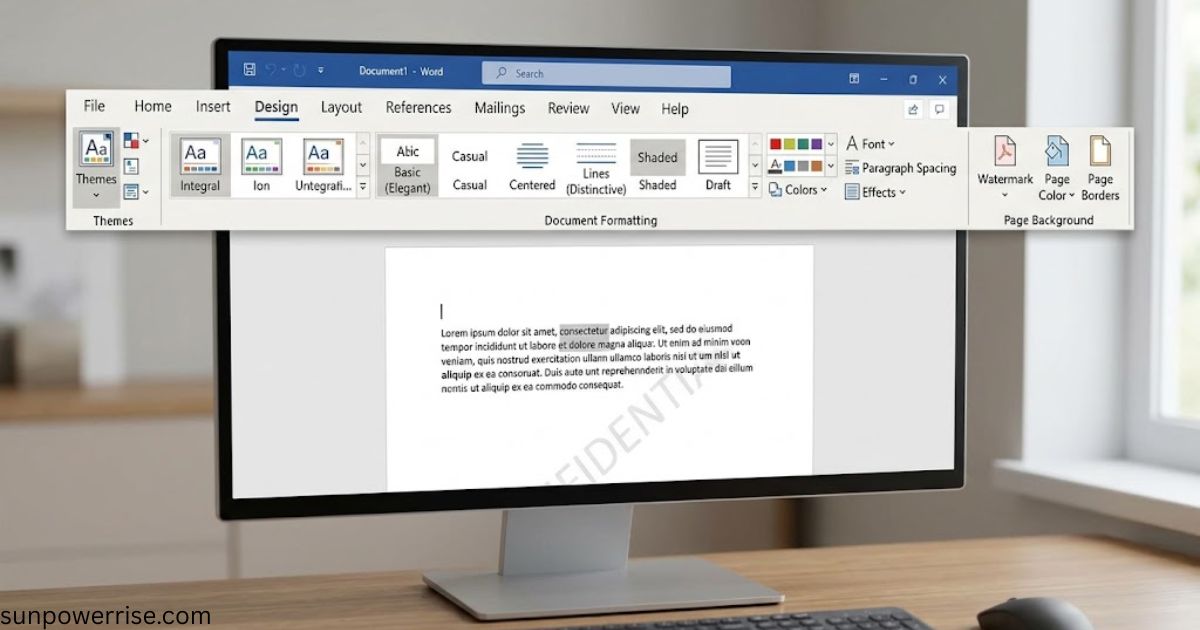
The design tab in Microsoft Word is the first place I go when a file looks messy, and I open it almost every day. I type some fake text, then try a few visual elements until the page looks consistent. These tips and tricks also save me when I rush to an office meeting and need to format a table with Table Tools.
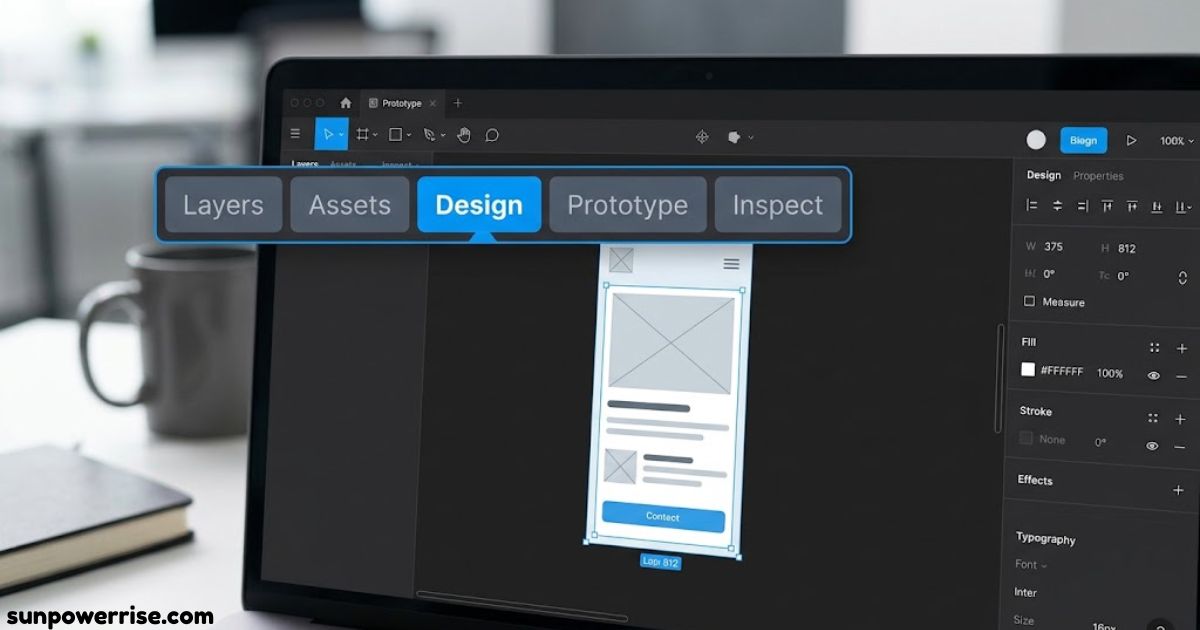
A similar design tab lives inside Simple Booklet, where I click from the dashboard and find a toolbar on the left. The live preview on the right shows every one of my changes as I make it. I customize each booklet for its readers, and I bring the same care to every document and design I build.
Design Tab: Preset Styles and Themes
Every new Word document from Office opens in the Office theme, and many people never change it. When I click themes in the Design tab, I pick Quotable for a fresh start. The Document Formatting choices then change the Styles section on the Home tab, where presets style my title, headings, and paragraphs in one click.
Sometimes my title looks too big, so I hover over each Document Formatting option and watch the preview. I scroll through a few, and the third one from the end often matches my design aesthetic. These individual elements let me adjust the formatting until the page feels right, and my readers notice the changes.
A new table starts with the default table style, called Table Grid, with dark black lines everywhere. I place my cursor inside it, open the design tab for tables, and move over Table Styles, and the live preview shows each look. Then I open the drop-down button, browse the ready-made table styles and predefined table styles, and choose Grid Table 4 – Accent 5, and Word redesigned automatically every row in a blink.
Colors and Fill (Page Color)
For my YouTube clips, I like a whimsical touch, so I open Page Color from the menu and hover over each shade. I choose accent brown, open the drop-down again, and click Fill Effects. There I add a gradient effect by picking a variant and a second color, and when I press OK, a soft brown and peach blend makes the page pop off the screen in every video. I can always go back to the color palette and try another mix.
Shading
For tables, the Design tab also offers Shading, which sets a fill color for rows and columns. When I choose lighter blue, it lands at once on the selected cells. It colors only the selected area, so I first mark a single row, a single column, or a block of cells.
I can also click the four-side arrow button to grab the entire table. Be careful, though: if I fill the entire table with one color, the Table Style Options stop working. I lose Banded Rows, First Column, and Total Row that way.
Borders
For a plain document, I open the design tab, click Page Borders, and pick Box. That draws an outline around the entire page and adds some visual depth. I use it when a page looks too flat.
In a table, I click the Border Style list, where Solid Line is the default, and I try a deeper line or a double-line border. Once I pick one, Word turns on the Border Painter, and my mouse pointer becomes a pencil. I draw over the edges I want, and I can use different border styles on different sides.
I also change the border color with Pen Color, and I set the Line Style and Line Width before I draw. The Borders button adds or removes lines, and I open its drop-down button to reach No Borders, which clears the entire table. I can also apply a border to just a selected area.
Conclusion
In about three minutes, the Design tab in Word can change how you format a table with any predefined table style. In Simple Booklet, the same design tab brings branding, navigation, reader controls, and engagement tools together. When I customize each part, I shape the overall experience, and my readers feel it.
FAQs
Where is the design tab?
The design tab sits in the ribbon at the top of your Word document, between the Insert and Layout tabs, so you can find it in seconds.
What is a design tab?
The design tab is a Word menu that holds themes, Document Formatting, color palette, fonts, Page Color, and Page Borders, which help your document keep a consistent look and feel.
How do I open the design tab in MS Word?
Open your Word document and click Design in the ribbon, and your themes and formatting options will appear right away.
What is the shortcut key of the design tab?
Press Alt + G to jump to the design tab in the ribbon, then use the arrow keys to move through the themes and options.
Why can’t I see the Design tab in Word?
The design tab may be hidden if your ribbon is collapsed or the tab is turned off in Customize Ribbon under Word Options, so don’t worry, it’s an easy fix. Open Customize Ribbon, tick Design, and click OK.