

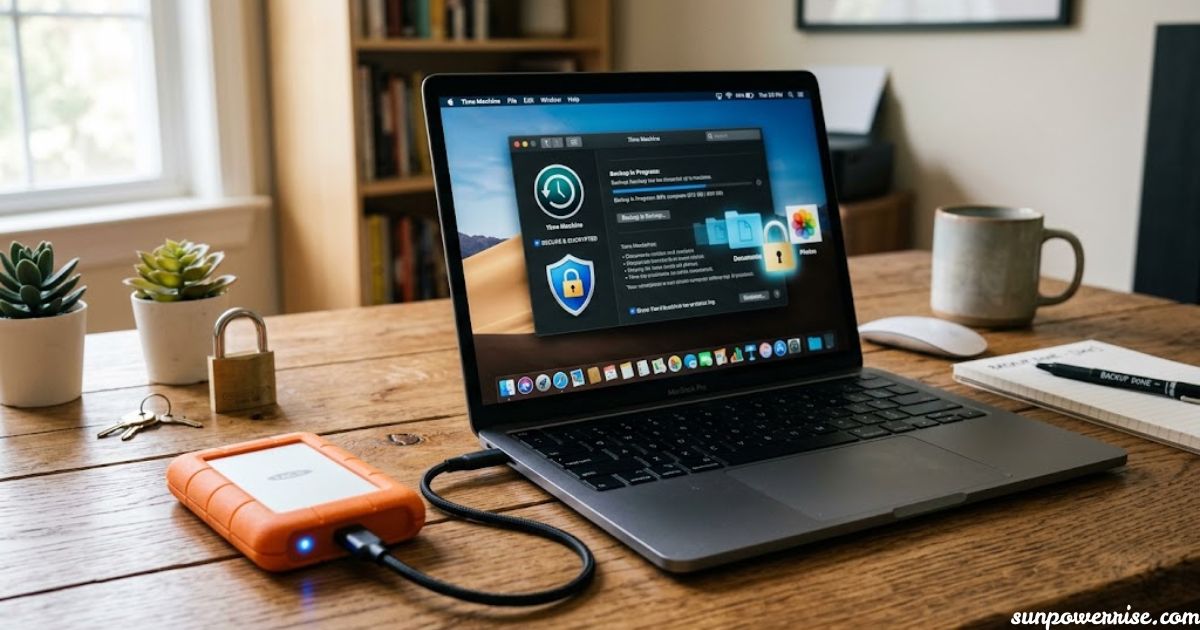
Data backup explained for Syracuse beginners starts with one simple idea: keep a second copy of everything you cannot replace. Data backup protects your files when a device breaks, a storm hits, or a hacker strikes. This beginner’s guide to data backup turns backing up your data into an easy habit, giving you a safety net and real peace of mind.
What is a backup copy, and why does it matter?
A backup copy is a duplicate of your files that you store apart from the originals. When something breaks, you use that duplicate to get your work back quickly. Regular data backups help you protect your digital life, from family pictures to tax papers.
Your digital life holds more than any filing cabinet ever did. I learned this when a friend’s computer died a week before a deadline, because nobody had tried to back up that machine. Real data protection starts with one small habit, not an expensive gadget.
What causes data loss?
Data loss has many causes, and accidental deletion tops the list. A hardware failure, including hard drive failure, comes next, and data corruption can ruin files without any warning sign. Even accidental data loss from a spilled coffee happens more often than people admit.
Fire, flood, and theft wipe out devices every year. A natural disaster, a wider disaster, or a local catastrophe can erase your only copy in minutes. Physical failure, physical damage, and other unexpected events strike without warning, usually at the worst possible moment.
How do cyber threats put my files at risk?
A cyber-attack locks or steals your files, and ransomware is the nastiest version. Attackers demand a ransom before they release anything, and payment never guarantees a happy ending. Victims then face an encrypted laptop that refuses to open.
A computer crash or server crash causes the same panic, and a stolen or damaged device does too. One system meltdown at a Syracuse office I know froze work for two days. That downtime caused lost revenue and annoyed customers.
What does getting my files back actually mean?
Data recovery means getting your files back after a crash, a break-in, or a plain mistake. You recover your data by using a stored copy to restore each file or folder. A complete restoration returns everything to how it looked before the problem happened.
Restoration goes faster when you plan ahead. Recovery time tells you how long you wait, and IT teams set a recovery time objective (RTO) as the target. The recovery point objective (RPO) names the acceptable data loss, measured in hours of work.
How is disaster planning different from a simple backup?
Disaster recovery is the full plan for getting systems running again, while a backup is only one piece of that plan. Disaster-proof storage keeps copies safe from the event itself. Both support business continuity, which simply means your work keeps moving.
Technicians often begin by restoring a system to a chosen point in time. You can retrieve lost files one by one or restore from scratch on new equipment. Backup and recovery work as a pair, minimizing disruption guides each choice, and good planning adds ransomware defense.
Which types of backup can I choose?
A file-level backup copies only the items you pick, while a system backup captures your whole setup, apps included. A system image backup saves a complete snapshot of a machine. A file backup suits most home users and costs very little.
A full backup copies everything every time, and an incremental backup copies only what changed since the last run. The incremental type saves space and time. Most tools let you mix both, running a full copy weekly and small ones daily.
Should I store my copies on the internet or at home?
Cloud backup sends copies over the internet to a remote company, and an online cloud backup needs no extra gear at home. A local backup stays in your building, usually as a disk-based backup. Each option has strengths, so neither wins every time.
A cloud-based backup lets you reach files from anywhere. A hybrid backup blends both worlds, and a hybrid-cloud backup adds a business-grade layer. Choose an onsite backup for fast restores, and add an offsite backup or remote backup for safety.
Can my backups run without my help?
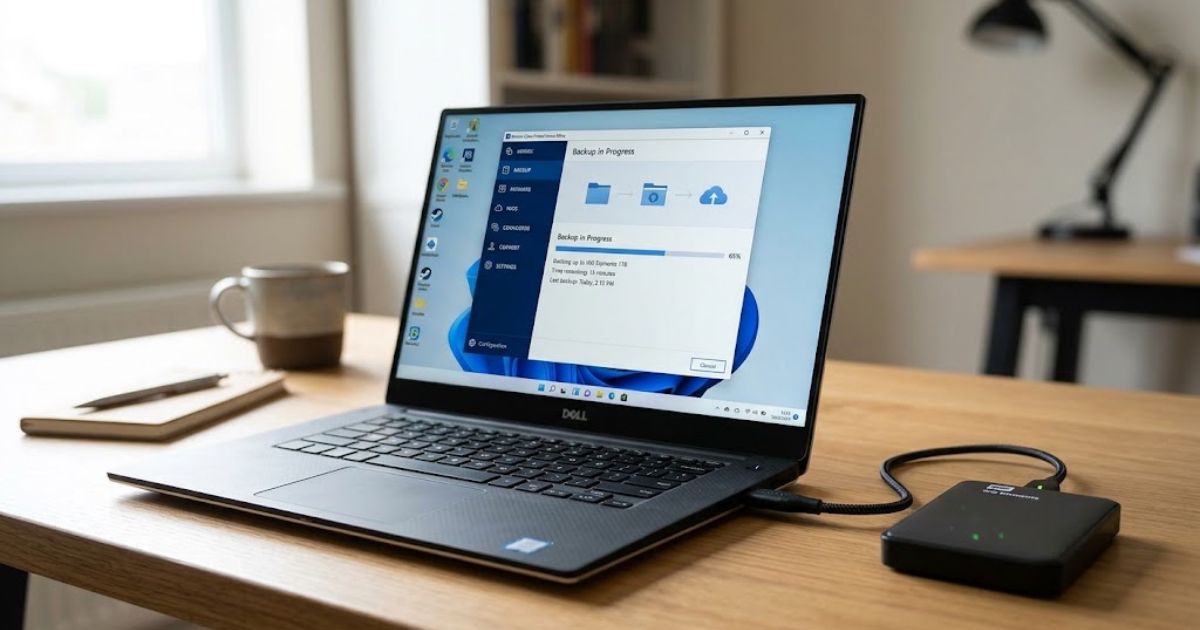
Yes, an automated backup runs on a schedule while you do other things. A real-time backup copies each change the moment you save it. I use both because I forget things, and I trust a schedule more than my memory.
File synchronization keeps two locations matching, and replication copies data to another site on a constant basis. This produces mirrored data, so a deleted file vanishes from both places. Sync alone never replaces a true backup.
Which devices can I use to store my copies?
An external hard drive is the cheapest starting point for most families. A hard drive holds plenty of room, and a thumb drive fits small sets of files. A tape drive still serves large offices that keep huge archives.
Removable media travels easily, while network attached storage (NAS) serves a whole household. A secondary storage device or local appliance gives an office more room. I plug a backup drive into my laptop every Friday afternoon.
What do servers and data centers do?
A server keeps shared files in one place, and each workstation connects to it. Your storage media choices include disks, tapes, and flash. Physical storage also needs a dry, locked spot away from windows and water pipes.
Data centers hold copies in guarded buildings with backup power. Some providers run bi-coastal data centers so trouble in one region cannot erase your files. A storage facility or colocation site rents space to companies that prefer to own their gear.
Are Google Drive and Dropbox enough?
Cloud storage such as Google Drive or Dropbox helps, but it is not a full safeguard by itself. Both services empty deleted files after roughly 30 days on standard plans. Cloud servers behind them keep your files reachable from any device.
Treat them as a handy helper for sharing files, not your only protection. Pair them with a separate copy that you control. That mix costs little and covers a lot, even when someone hacks an account.
How do I keep my copies private?
Encryption scrambles your files so strangers cannot read them. When you encrypt your data, only your key opens it, and strong encryption makes guessing nearly impossible. Pick tools that offer both, and test them before you trust them.
Ask whether files stay encrypted in transit and as data at rest. Data compression shrinks files before sending, which saves time. Store disks in a secure offsite location and guard each password like a house key.
What should a business ask its security provider?
Ask for granular security controls so each employee sees only the files their job requires. Solid network security blocks attackers before they reach your data. Managed security hands that daily watch to specialists who do it full time.
A package may include cloud antivirus, a managed firewall, and email and spam protection. Choose a trusted provider with enterprise-grade tools, because sensitive information attracts thieves. The threat landscape shifts fast, so managed detection and response adds round-the-clock watching.
What is the 3-2-1 rule?
The 3-2-1 rule tells you to keep three copies of your data on two separate systems, with one offsite copy. Photographer Peter Krogh popularized it, and IT pros still follow it. It works because no single problem can reach every copy.
Build a backup routine around it, and write a backup checklist you can follow. Set a backup schedule that fits how often your files change. Pick a backup frequency you can keep: daily for work files, weekly for family pictures.
How do I make sure my backups actually work?
Verify the backup each month by opening a few files from it. You want an intact data copy, not a silent failure that you discover during an emergency. Regular backups only help if the copies actually open.
Turn on automatic backups so nothing depends on memory. Rotate drives so you always hold an older copy, and take proactive steps before trouble starts. Store off-site backups away from the originals and dispose properly of old disks by wiping them first.
How much does it cost, and is it worth it?
Yes, it is worth it, and the cost of media stays low. A one-terabyte external drive often sells for about 60 dollars. Compare that with the price of recreating years of lost work, which can run into thousands.
Online plans add a subscription cost and need steady internet access. Free built-in utilities in your operating system, such as Apple’s Time Machine and Windows Backup, handle the basics. Paid backup software adds extras, so prioritize important files first if money feels tight.
What should I back up first?
Start with important files that you cannot recreate, such as documents, photos, and contacts. Add scans, emails, and projects next. Move on to whole folders after that, working from most to least valuable.
Students should include schoolwork, and families should save financial data and financial records. Offices must guard client information and other valuable information. For total safety, copy your entire system, along with software licenses and software disks.
Who needs managed IT services in Syracuse?
A small business often benefits from managed IT services because it rarely has a full tech team. IT support handles daily problems, and IT consulting guides bigger choices. Outside help can cost less than one full-time hire, and it covers sick days.
Providers offer network monitoring, a help desk, and a qualified network engineer who knows your setup. Certified technicians and system engineers keep network services running smoothly. Cloud solutions and cloud computing often come bundled in the same plan.
FAQs
What is a network health check?
A network health check reviews your equipment, settings, and risks in one sitting. A free technology self-assessment gives business owners a quick starting point. It shows which mission-critical data needs protection first, before anything else.
An enterprise follows the same steps on a larger scale. The review covers hardware, software, and cloud-based services. A third-party provider or service provider can run it for you, so your staff keeps working.
What benefits does a managed service bring?
Good providers deliver speed, so large files copy overnight, along with granularity that restores a single file and reliability you can count on. Scalability lets your plan grow as you hire. Convenience and accessibility round out the list.
You can protect multiple devices from one dashboard. Copies live on remote servers or a secure server at an offsite data storage site. That setup keeps your originals free of clutter and your staff free of worry.
How do I build a backup plan from scratch?
Start by writing a backup strategy that lists what you protect, how often, and where. Then turn it into a backup plan with clear owners and dates. Choose a backup solution that fits your budget and your skills.
Pick a backup method you can maintain, and test a backup service before you commit. Good data security, data integrity, and data management habits tie it all together. Basic cybersecurity training for staff supports each step and costs far less than a breach.
Where should I start today?
Create a restore point before you change anything, then decide how much downtime tolerance you really have. A family can often accept a day, while a shop cannot. That answer tells you how fast your plan must work and how much you should spend.
Winter storms in Syracuse knock out power, so a surge protector is cheap insurance. Plug in a drive tonight, run your first backup, and write the date on a sticky note. Check one file next week, and you will already beat most people.