

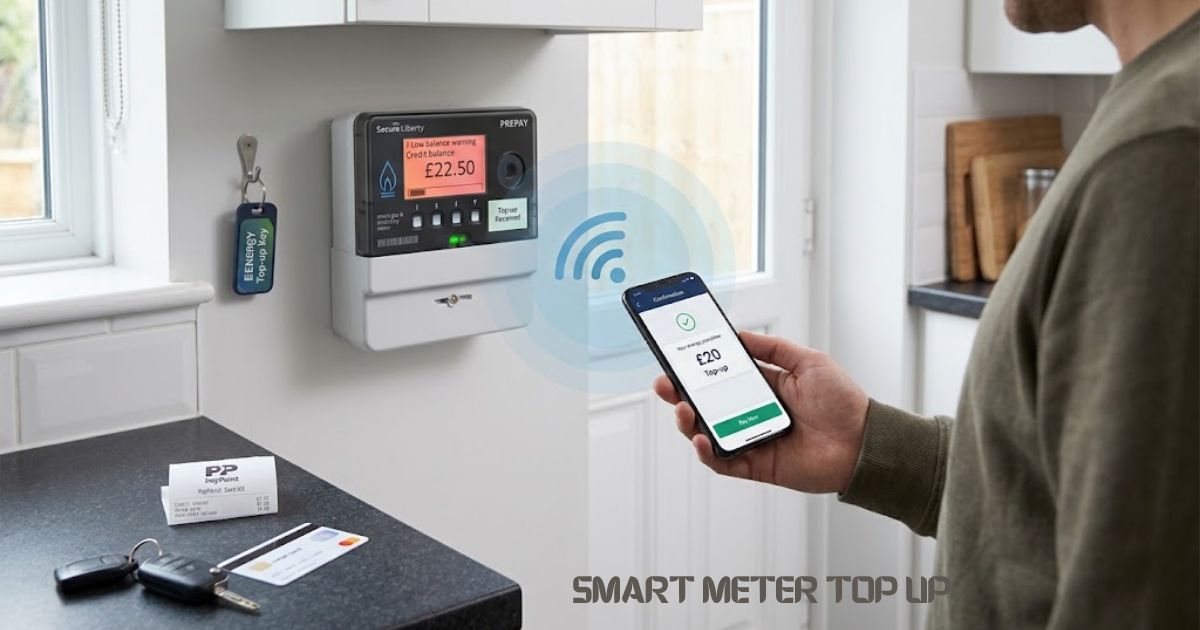
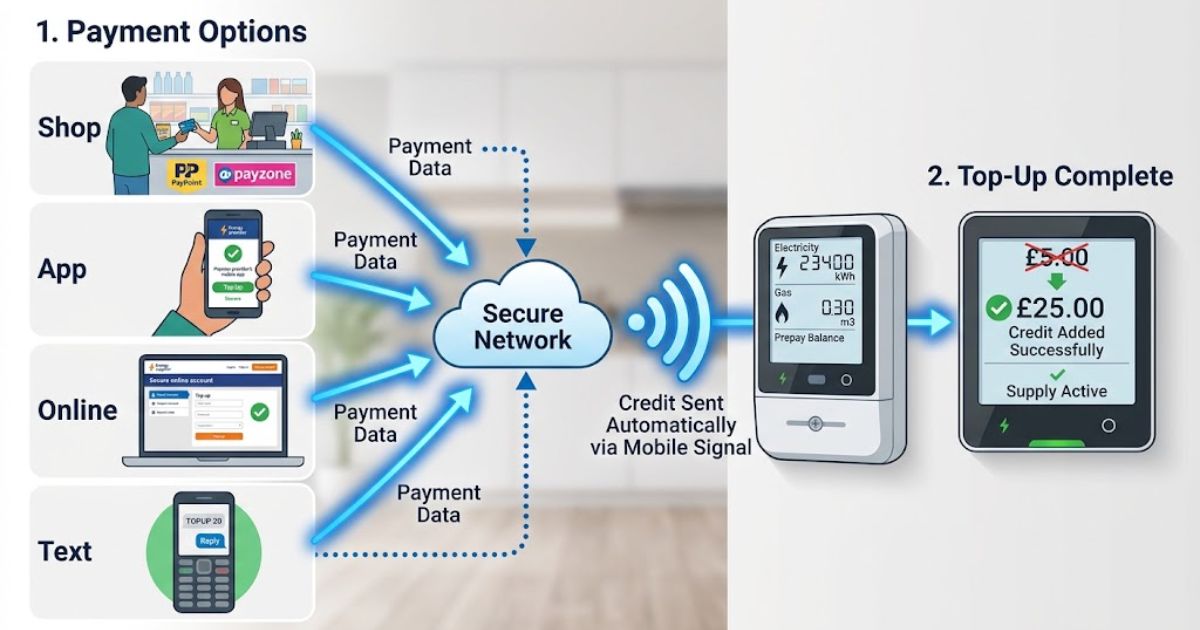
A smart meter top up is the process of adding credit to a prepay (pay-as-you-go) smart meter so you can keep using gas and electricity. You pay through a shop (such as PayPoint or Payzone), by text, online or through an app, and the credit is sent to your meter automatically by a mobile-style signal.
I do a smart meter top up often, and I know the worry of seeing no credit after paying. Every top-up is sent automatically to your meter, much like a message reaching a mobile phone, but the signal can drop, and a poor signal leaves the arrival delayed even after the shop has processed your payment.
Smart Meter Top Up: What to Do When Your Credit Is Delayed
Your gas meter tries to save battery, so it may only wake up every 30 minutes, and I always wait a little before the gas or electricity side shows the top-up as credited and registered. If you don’t want to wait, you can manually enter a manual top-up at the electricity meter, and your smart meter top up will land without the delay.
Shop Top-Up Process
I like to do my smart meter top up with Scottish Power at a PayPoint or Payzone shop, so I first use the locator tool or the app to find one, and I note the opening hours and any fees. At the counter, I give the cashier my key or card, tell them the amount, and make the payment by cash, debit card or credit card, whichever payment method suits me. Then I insert the key into my smart meter, and my balance goes up for electricity and gas.
Receipt and Code Formats
Each receipt carries a top-up code of 20, 40 or 60 digits, which fills one line, two lines or three lines on a paper receipt, and you also get it by text message, reply, email or on screen when you pay online.
Status Messages and Error Handling
To use it manually, open the menu screen, tap the Account button, pick the supply type, type the entire top-up code on the keypad screen, and press Enter on your in-home display. You see transaction successful when the credited top-up lands, transaction failed with code has already been used when you repeat a code, and code is incorrect when you type wrong digits.
A coms error means the display cannot communicate with the meter, so move closer to it, and add two AAA batteries if the display needs them. If you are unable to access the display, enter the code straight into the supply meter instead.
What to Do If You’re Off Supply
When your power goes off supply, I recommend that you always skip the In-Home Display, because it is not reliable without supply. Start manually entering your top-up directly into the electricity meter or the gas meter. This simple step helps your smart meter top up restore your electricity and gas quickly.
How to Identify Your Electricity and Gas Meters
Your electricity meter looks like a box with wires coming out of the bottom, while your gas meter has pipes coming out of the top. You can only enter an electricity top-up code in the electricity meter, and you can only enter a gas top-up code in the gas meter. Each top-up code from a smart meter top up belongs to one meter, so I look at the top and bottom of the meter before I type anything.
How to Enter a Top-Up Code Directly Into Your Meter
A smart meter top up takes only a few presses at the meters. Press the blue A button, and the display shows a message called Vend Mode. Next, enter the entire top-up code and press the red B button. The meter then processes your transaction, and when you enter the top-up code directly, it shows the top-up as credited within moments.
Meter Messages After Entering a Top-Up Code
Once the meter has processed your code, it shows a message. Accepted means the meter credited your top-up. Rejected Duplicate means a duplicate, because the code already worked, so check that you have the correct top-up code. Rejected Incorrect tells you the entry is incorrect, so try again, and Rejected Incomplete means your entry is incomplete because you missed some digits.
Rejected Invalid means the code is invalid because you used the wrong meter, either the gas meter or the electricity meter. If you enter a wrong code too many times, the screen shows Key Locked, the keypad stays locked, and you must wait a few minutes to unlock it, and the message stays on screen longer after each mistake. To save battery life, the gas meter can stay locked until midnight.
FAQs
Why has my smart meter top up not shown on my meter?
Your credit travels to the meter by signal, much like a mobile phone, so poor signal can delay it. Your gas meter may also only wake up every 30 minutes, so wait a little or enter the top-up code manually.
How do I enter a top-up code directly into my meter?
Press the blue A button, and when Vend Mode appears, type the entire top-up code. Then press the red B button to process it.
What does “Rejected Invalid” mean on my meter?
It usually means you entered the code into the wrong meter. Gas codes only work in the gas meter, and electricity codes only work in the electricity meter.
Where can I find my top-up code?
You will find it on your paper receipt if you paid in a shop, in a text message reply if you topped up by text, or on screen or in an email if you paid online. It is 20, 40 or 60 digits long.
What should I do if my meter shows “Key Locked”?
You entered the code incorrectly too many times, so wait a few minutes for the meter to unlock. A gas meter can stay locked until midnight to save battery.
Should I use my in-home display if I am off supply?
No, it may not be reliable when you are off supply. Enter the top-up code directly into your electricity or gas meter to restore your supply.